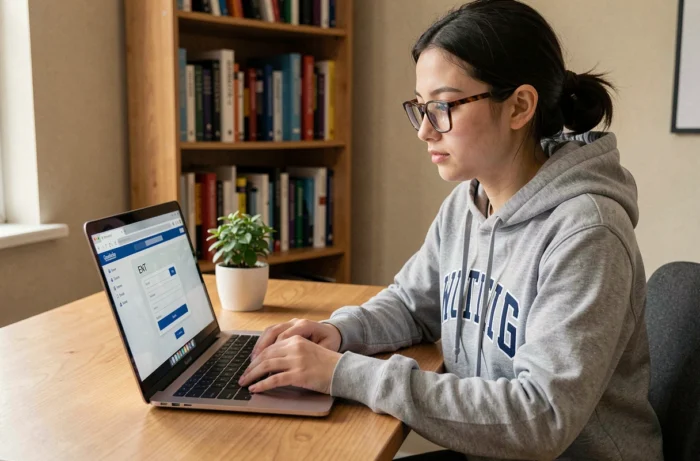
You open your browser on a Sunday evening to check a schedule or retrieve a course document, and the login page of La Rochelle Université’s ENT refuses your password. This situation is common, and resolving it takes only a few minutes when you know where to look. This guide covers the concrete issues that arise when connecting from a home network, from the CAS authentication form to often overlooked security reflexes.
CAS Session and Browser: The Technical Trap to Know Above All
The ENT of La Rochelle Université relies on a centralized authentication called CAS (Central Authentication Service). You enter your credentials only once, then access email, educational resources, and administrative services without having to log in to each tool again.
The problem arises at logout. A CAS session can remain active even after clicking “Logout”, as long as the browser is not completely closed. On a shared computer (in a family or shared housing), someone who opens the same browser may stumble upon your session.
The solution is simple: after logging out, close all browser windows, not just the ENT tab. To go further, clear the session cookies. On Firefox, this is done via Settings, then Privacy and Security, then Cookies and Site Data. On Chrome, the shortcut Ctrl+Shift+Delete opens the cleanup panel directly.
This reflex also applies when using the ENT from a smartphone browser. Mobile browsers retain cookies longer than one might think.

ENT La Rochelle Credentials: Format and Password Recovery
The login identifier corresponds to the login assigned during administrative registration. It usually takes the form of firstname.lastname or a short variant. The initial password is the one set during the activation of the digital account, often via the activation portal accessible from the university’s website.
To log in to the ENT La Rochelle university smoothly, you go through the CAS authentication page at authentification.univ-lr.fr. There is a “Forgot Password” link that allows you to initiate a reset via a backup email.
Two common blocking situations arise:
- The backup email provided at registration is no longer accessible (old personal address). In this case, you need to contact the digital services department, specifying your student number and an ID.
- The account has never been activated. New registrants receive an activation email in the days following the validation of their administrative registration. If this email does not arrive, check the spam folder before seeking support.
- The password has expired. Some institutions require periodic renewal. An expired password does not always generate an explicit error message; the page may simply refuse the connection in a loop.
Setting Up Eduroam at Home to Secure Mobile Access
Eduroam is the Wi-Fi network shared among French and European universities. You can configure it from home, on your box or through mobile hotspot, so that the device is ready to connect automatically upon arrival on campus or at another university.
Configuring Eduroam before the start of the school year avoids queues in front of the IT service in September. The tool recommended by most universities is the CAT (Configuration Assistant Tool), available at cat.eduroam.org. You select La Rochelle Université, download the profile corresponding to your system (Windows, macOS, Android, iOS), and then enter your ENT credentials.
On Android, feedback varies on this point: some versions require you to manually choose a root certificate, while others accept the profile without intervention. If the system requests a certificate and none appears in the list, you need to download the certificate from the configuration page before restarting the installation.
Testing the Eduroam Connection Without Being on Campus
You cannot connect to the Eduroam network itself from your home box (the SSID is not broadcast). However, installing the Eduroam profile from home confirms that the credentials are correct. If the installer returns an error during verification, it is often a password or identifier format issue (you generally need to use [email protected], not just the login alone).
Accessing ENT on Smartphone: Browser or App
The ENT of La Rochelle Université is accessible from any mobile browser. There is no dedicated ENT app to download, unlike some large universities. Therefore, you use Safari, Chrome, or Firefox mobile, by accessing ent.univ-lr.fr.
For quick access, you can add a shortcut to your phone’s home screen:
- On iOS: open the page in Safari, tap the share button, then “Add to Home Screen”.
- On Android with Chrome: three-dot menu, then “Add to Home Screen”.
- On Android with Firefox: the same principle via the main menu.
This shortcut opens the page in a nearly app-like view, without a cluttered address bar. The university email and schedule remain the two most consulted services from a mobile device, and both work correctly in a standard browser.
What to Do When the ENT La Rochelle is Inaccessible from Your Home
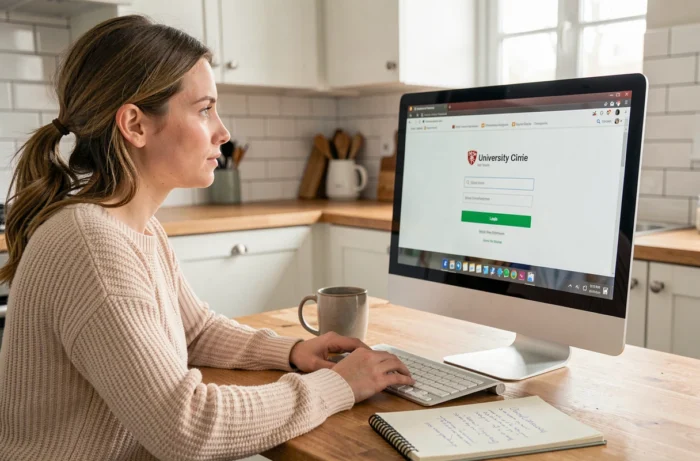
If the page does not load at all, the problem rarely comes from your credentials. A few quick checks can help isolate the cause.
Start by testing another site to confirm that the internet connection is working. If only the ENT is inaccessible, check that the box’s DNS resolves the domain univ-lr.fr correctly. Temporarily changing the DNS server (switching to 1.1.1.1 or 8.8.8.8 in the network settings) sometimes resolves the issue.
Scheduled maintenance mainly occurs at night or on weekends. The university’s digital services portal publishes notices of outages, but you only see them if you have access. Checking the university’s official account on social media can provide information faster.
If access returns after a few hours but the problem recurs, an antivirus or local firewall may be blocking certain HTTPS requests to the CAS server. Adding an exception for the domain authentification.univ-lr.fr in the firewall settings resolves most of these cases.
One last often-forgotten point: the browser itself. A corrupted cache or an ad-blocking extension can interfere with the CAS redirection. Testing in private browsing can confirm or rule out this possibility in a matter of seconds.